
The Microsoft Copilot for Microsoft 365 License

NOTE:
Copilot is a rapidly evolving collection of services from Microsoft.
This article is update to date as of the 6th of April 2024

References:

Summary

The Microsoft Copilot for Microsoft 365 (CM365 ) license is required to enable Copilot functionality across the suite of M365 apps and services. In this article, we will explain what the license enables and what each feature does.
This article will not cover: Costs, how to buy the CM365 licenses, how to assign licenses and how to get ready to deploy CM365 to an organisation.

After you have bought a license and it is available on the Tenant, you will see the following options to turn on/off. By default all capabilities are turned on.
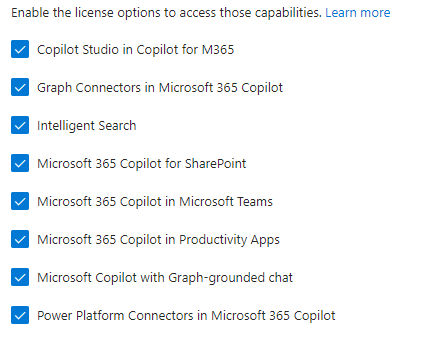
But what actually do each of them do/control/provide?
The Copilot for Microsoft 365 service description details what 6 of these capabilities provide (5 as service plans, 1 as a feature). The next 2 sections (Service Plans and Features) details the specifics of the associated service plans and features.
That leaves 2 (Copilot Studio in Copilot for M365 and Microsoft 365 Copilot for SharePoint) that aren’t referenced as part of the Copilot for Microsoft 365 service description. There are separate section to address these.

Service Plans

As with most Microsoft licenses, the CM365 license includes a number of service plans as part of the license. There are currently 5 service plans listed in the Copilot for Microsoft 365 service description. Each of which bundles together 1 or more features.

Service PlanFeatures
Microsoft 365 Copilot in Productivity AppCopilot in Word
Copilot in PowerPoint
Copilot in Excel
Copilot in Outlook
Copilot in Loop
Copilot Whiteboard
Copilot OneNote
Microsoft 365 Copilot in Microsoft TeamsCopilot in Teams
Microsoft Copilot with Graph-grounded chatMicrosoft Copilot Graph-grounded chat
Power Platform Connectors in Microsoft 365 CopilotPower Platform connectors
Graph Connectors in Microsoft 365 CopilotGraph connectors

Features

There are currently 13 features in the Copilot for Microsoft 365 service description. I have divided them into two main categories:

  • Productive Apps
  • Services
FeatureDescription
Productive Apps
Copilot in WordCopilot in Word transforms your writing with efficiency and creativity – create, summarize, comprehend, refine, and elevate your documents. Now you can use enhanced capabilities like visualizing and transforming text into a table. Some other capabilities also include adding onto existing prompts, drafting a document by referencing up to 3 documents and discovering information about your document.
Copilot in PowerPointCopilot in PowerPoint helps you turn your ideas into stunning presentations. As your storytelling partner, Copilot can transform existing written documents into decks complete with speaker notes and sources or start a new presentation from a simple prompt or outline. Condense lengthy presentations at the click of a button and use natural language commands to adjust layouts, reformat text, and perfectly time animations.
Copilot in ExcelCopilot in Excel works alongside you to help analyze and explore your data. Copilot can help you explore and understand your data better. It helps analyze and visualize your data. Highlight, filter, and sort your data.
Copilot in OutlookCopilot in Outlook helps you stay on top of your inbox and create impactful communication in a fraction of the time. Now you can ask Copilot to summarize an email thread to quickly jump to the source of the summarized content, suggested action items, replies, and follow-up meetings. You can also choose options for length and tone when drafting an email.
Copilot in TeamsRecap conversations, organize key discussion points, and summarize key actions.
Get answers to specific questions, catch up on anything you’ve missed.
Create meeting agendas based on chat history.
Identifying individuals for follow-ups, and scheduling the next check-in.
Copilot OneNoteCopilot in OneNote helps you revolutionize the way you plan, and organize – staying better prepared and proactively taking action from notes. Now you can gain deeper insights on your notes by asking comprehensive questions, generating summaries of your content, ask Copilot to generate content for you, and help make your writing clearer.
Copilot in LoopCopilot in Loop helps you unlock the power of shared thinking – co-create, get up-to-speed, and stay in sync with your teammates. Now you can iterate with Copilot collaboratively as a team, co-creating prompts, generating tables to help organize team projects, catch up where your teammates left off, summarize page content, and generate a recap for a teammate you’re handing work off to.
Copilot WhiteboardCopilot in Whiteboard helps you kickstart and accelerate your ideation process to generate, categorize, and summarize your ideas.
Services
Microsoft Copilot with Graph-grounded chatAccessible via multiple surfaces, including within Microsoft Teams, at Microsoft365.com, and at bing.com/Chat. Your single destination to take on any task. Microsoft Copilot with Graph-grounded chat combines the power of Large Language Models with the Internet, your work content and context, and other apps, to help you draft content, catch up on what you missed, and get answers to questions via open prompts.
Intelligent SearchUnlock the ability to search data in your Dataverse applications such as Dynamics 365 Sales, Service & Finance and Operations using the intuitive natural language experience right from the copilot.
Power Platform ConnectorsAccess real time data from a collection of critical business and personal productivity applications right in the Copilot experience, enabled by our fast-growing catalogue of Copilot enabled Power Platform Connectors.
Microsoft Graph ConnectorsConnect external data sources to Microsoft Graph using connectors and add up to 500 items per Copilot license. Benefit from deep retrieval of content in Copilot, Search & other intelligent experiences using the semantic index.
Microsoft PurviewExtend Microsoft Purview capabilities provided by your Microsoft subscriptions,
e.g., Microsoft 365 E3 or E5 subscriptions to Copilot data and interactions.

Copilot Studio in Copilot for M365

Importantly this is not a capability that controls a users ability to access Copilot Studio.
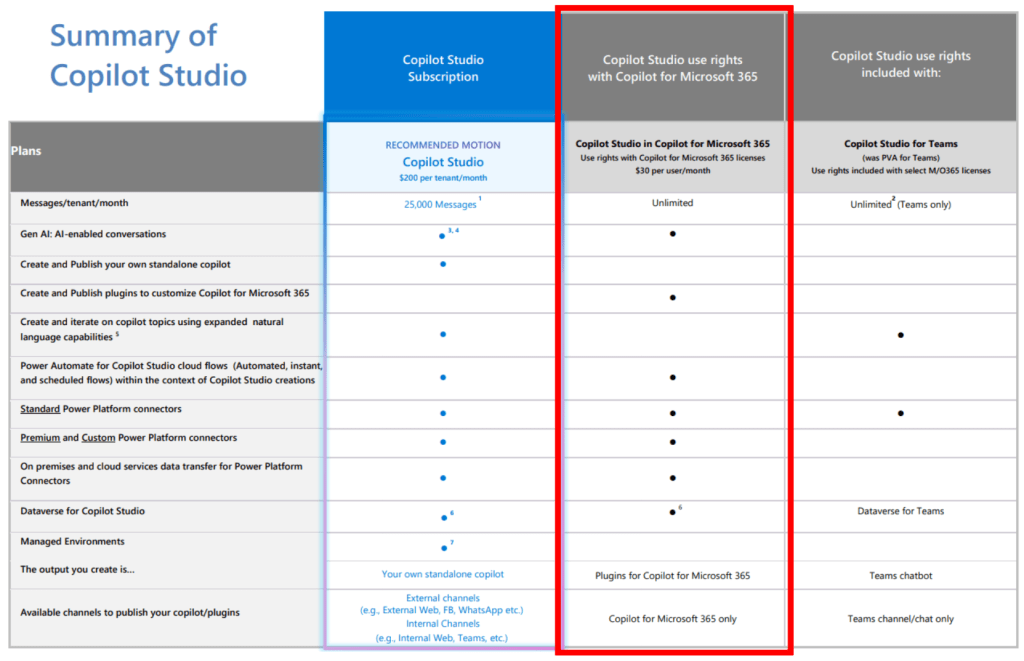
This license provides 2 specific capability:

  • Output you create is: Plugins for Copilot for Microsoft 365
  • Available channels to publish your copilot/plugins: Copilot for Microsoft 365 only

The Power Platform Licensing Guide describes the capability as:

Licensed Copilot Studio in Copilot for Microsoft 365 users can create, manage and publish plugins from
Copilot Studio to Copilot for Microsoft 365.

Basically, if you want a user to be able to make a customised Copilot in Copilot Studio and publish it to be used from M365 apps, turn on this option of the license.
Microsoft 365 Copilot for SharePoint

Best I can tell this functionality isn’t generally available yet.
It seems to relate to the M365 roadmap Feature ID item 124840 (LINK). This is currently list as starting to rollout May 2024.

Microsoft announce blog post: SharePoint in the AI Era: Introducing Copilot in SharePoint & 10 more innovations for creators

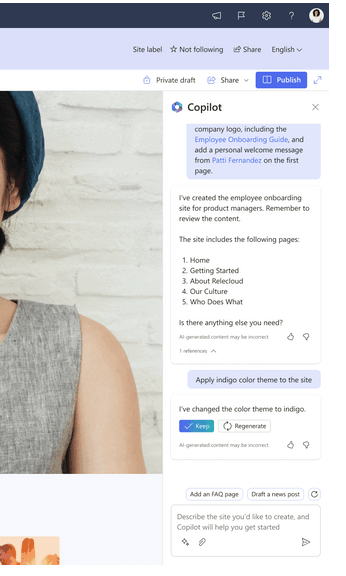
When it is released it will provide a Copilot side bar experience to help with content creation.
Conclusion and Recommendation

Hopefully, this has helped you understand what you get with the Microsoft Copilot for Microsoft 365 license.
To finish, I’ve shared my usual starting point for discussing with organisation which capabilities to turn on first:
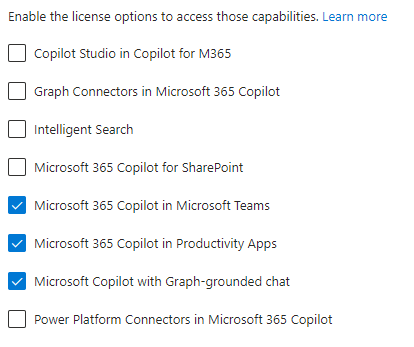
From experience, the three capabilities that most organisation start with are:

  • Microsoft 365 Copilot in Microsoft Teams
  • Microsoft 365 Copilot in Productivity Apps
  • Microsoft Copilot with Graph-grounded chat

These are the features that are the simplest for users to try out and use to improve their daily tasks.

Microsoft Teams – Webinar

Summary

The long requested Teams Webinar functionality is currently rolling out and made it to my tenant this morning.

Description: Microsoft Teams: Teams webinar capabilities general availability
Feature ID: 80009
Schedule and deliver 1,000 person webinars with the same Teams app you use for meetings! Webinar capabilities support registration page creation, email confirmation for registrants, host management for attendee video and audio, attendee reporting, plus interactive features like polls, chat and reactions.

Setting up the webinar

Two steps for creating a webinar:

  • Create the meeting
  • Create the public registration form.

The meeting invite

Note: A webinar cannot have a channel associated to it. If you try, you’ll get warning saying the channel first needs to be removed.

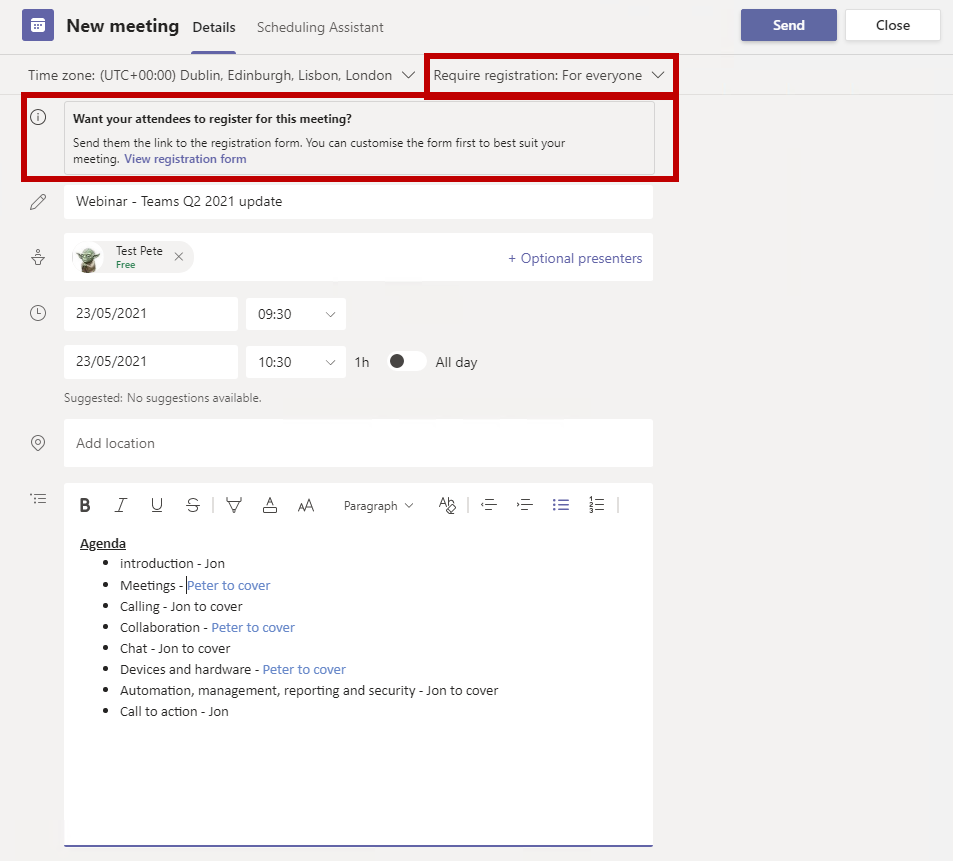
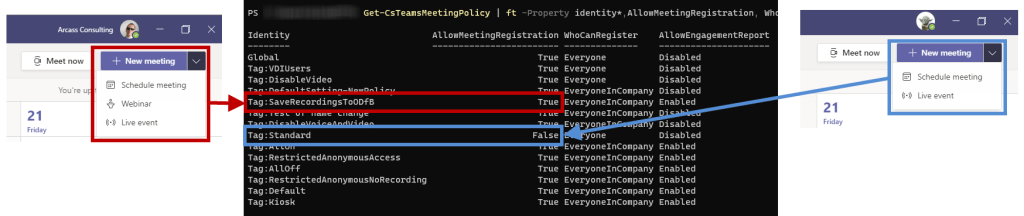
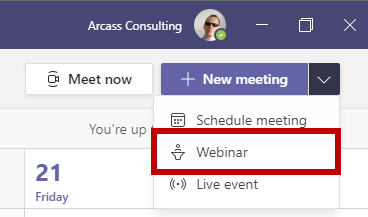
To schedule a webinar, head to the calendar app in the Team client and select the “Webinar” option from the drop down menu.

This will then open the New meeting form. This form has 2 additional elements compared to a normal meeting:

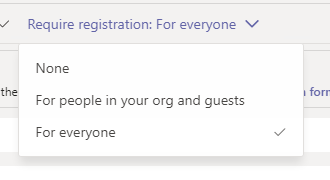
  • The “Required registration” picker – For a public webinar you want to select “Everyone” here.
  • The registration form link.

Set the registration mode:

  • Everyone for public events
  • EveryoneInCompany for internal events

Invite your presenters, set a time & date and fill in the agenda. I find it’s a good idea to have the Teams meeting start 15 to 30 minutes before the actual webinar is due to start to let the presenters get ready. When you are happy click the “View registration form” link to configure the registration form.

The registration form configuration

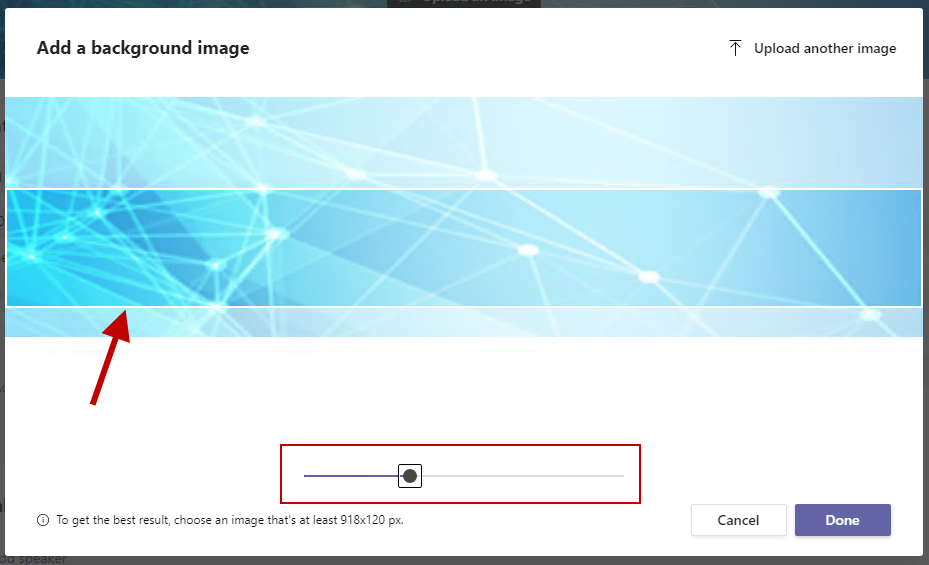
Banner image requirements:

Image size: 918 x 210 pixels recommended,
File formats supported: png and jpg.
The banner uploader does include a zoom slider and a drag control, if you choose to use a large image.

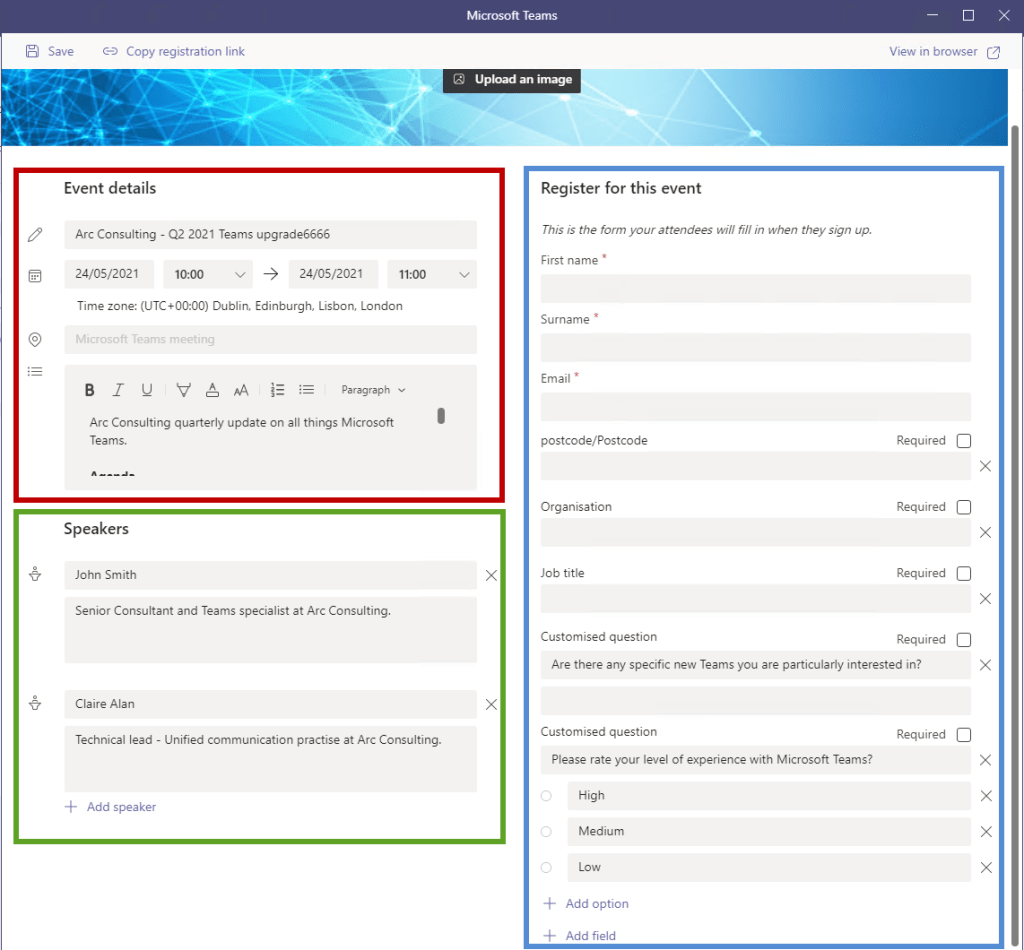
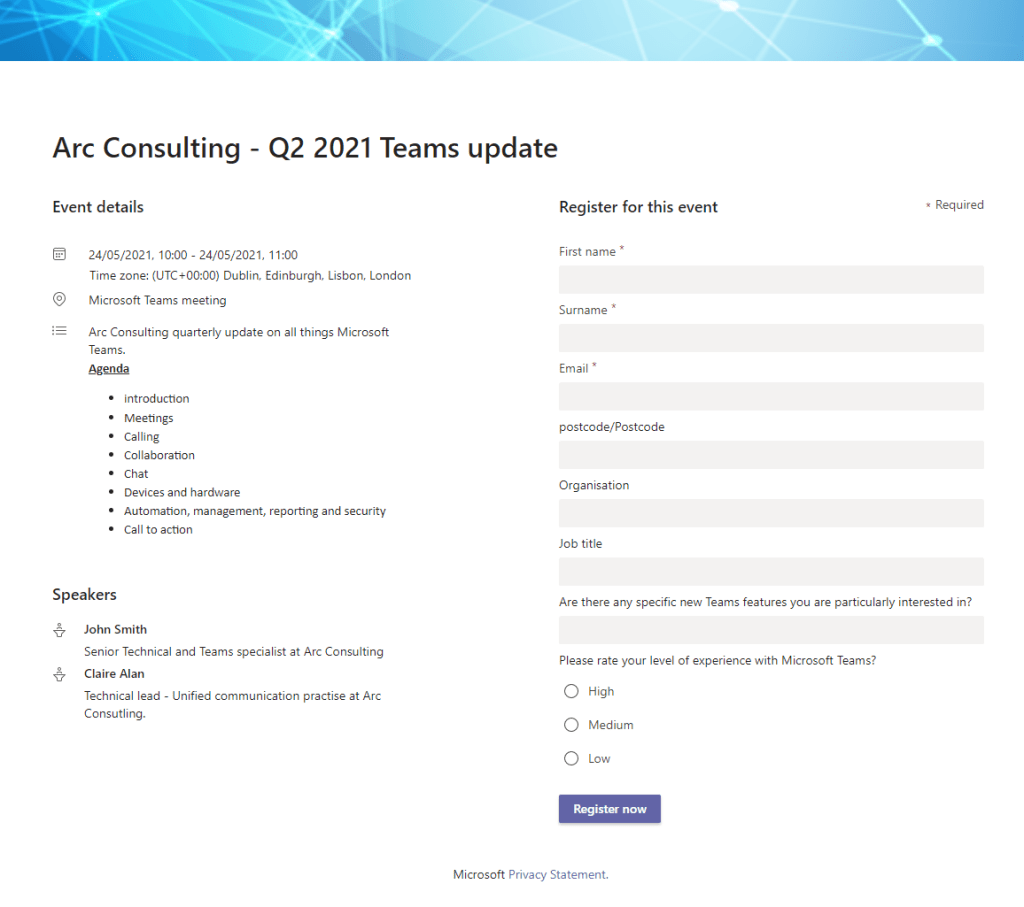
Event details (red box)
Area for providing the date and time of the event. There is also a box for providing details about the event, this box accepts rich text.

Speakers (green box)

The registration page provides an area for listing the speaker and providing a short bio for each. This is currently limited to plain text only.

Registration field (blue box)

The registration form includes 3 default required fields: First name, surname and email address.
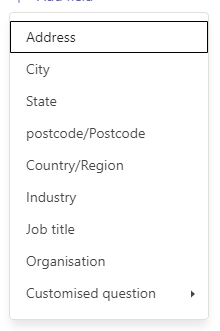
There is also the option to add additional pre-set fields and create your own custom questions. These can be marked as required.

Published form example

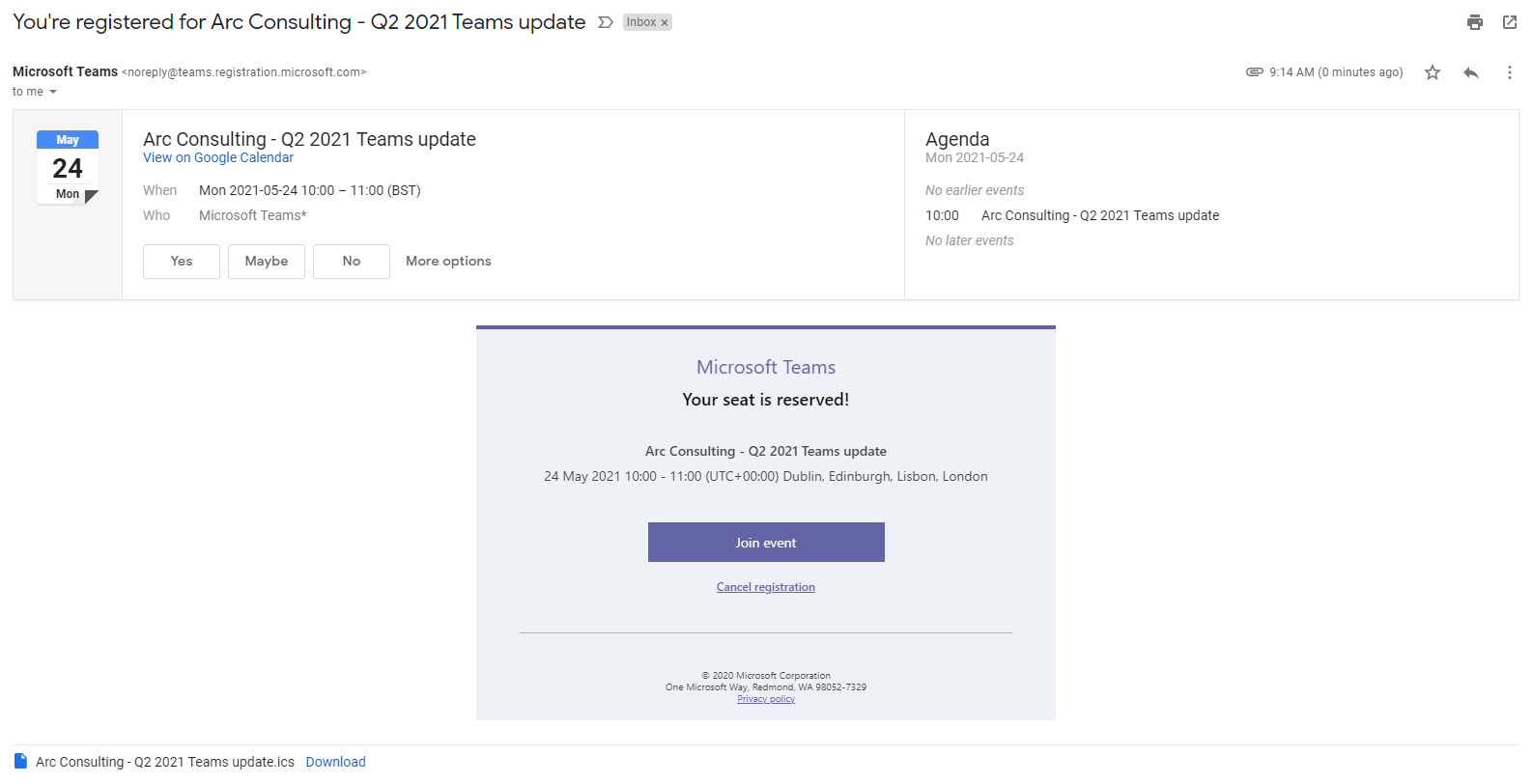
When someone registers for an event, they will received an email confirmation which includes the link to join the event. The email comes from “noreply@teams.registration@microsoft.com”

Policy settings

Currently the webinar related meeting policy settings are not available in the Teams admin center and must be configured using PowerShell. For example:

set-CsTeamsMeetingPolicy -id Tag:WebinarExample -WhoCanRegister Everyone -AllowMeetingRegistration $true -AllowEngagementReport $true -StreamingAttendeeMode $true

Policy: Teams Meeting
Parameter: AllowMeetingRegistration
Values: True | False
Description: Master switch controlling if “Webinar” is available as a meeting type. True is the default value.

Parameter: WhoCanRegister
Values: Everyone | EveryoneInCompany
Description: Controls who can register for your webinar. For a public webinar, set this to “Everyone”.
Additional note: To use the “Everyone” option, you will also need to have the meeting setting “Anonymous users can join a meeting” set to “On”.

Parameter: AllowEngagementReport
Values: Enabled | Disabled
Description: Controls if the meeting organiser can download the registration report for the webinar.


Parameter: StreamingAttendeeMode
Values: Enabled | Disabled
Description: Enabled View-only mode for attendees once a meeting is at maximum capacity.

Additional note:
AllowPrivateMeetingScheduleing also need to be set to True otherwise a user won’t have the “New meeting button” at all.

View-only mode

View-only mode is an overflow feature of meetings. Once the meetings maximum capacity has been reached, additional attendees will join in view-only mode. The view-only mode provides the following experience:

  • Listen to the participants in the main Teams meeting.
  • See the video feed for the active speaker (if the active speaker is sharing video).
  • See content being shared using the share desktop or screen functionality.

There are additional limitations and consideration for view-only mode, please consult the full Microsoft article (link below) for full details.

Full Microsoft reference article: https://docs.microsoft.com/en-us/microsoftteams/view-only-meeting-experience

Webinar registration report

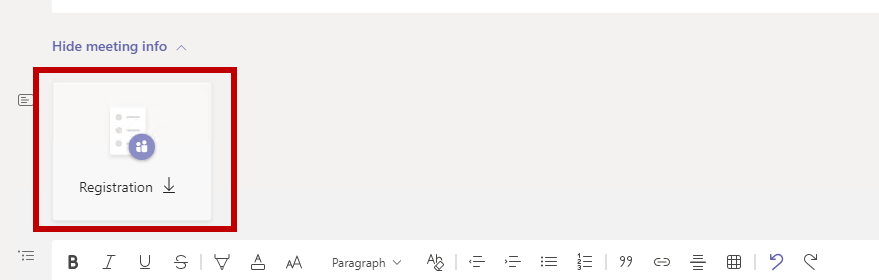
The Teams meeting invite will also include a registration report, so the event organise can track sign-ups and also see the answers to any questions asked as part of the registration process. These responses can be used to tailor the content of the event.

Microsoft Teams – Voicemail on busy

Summary

In Microsoft Teams, when a user is on a call and receives another call, the default behaviour is to alert the user to the 2nd incoming call with a audio notification and a pop-up. This behaviour is a common complaint from end users.

To help address this Microsoft introduced the BusyOnBusy functionality. The user would not receive an alert and the caller would hear a busy tone. Definitely an improvement but still not perfect.
Now with the ability to follow a user’s call answering rules, we finally have voicemail on busy.

How to setup voicemail on busy

Policy: Teams Calling
Parameter: BusyOnBusyEnabledType
Values: Enabled | Unanswered | Disabled

Unanswered description
When set to Unanswered, the user’s “If unanswered” settings will take effect, such as routing to voicemail, forwarding to another user or forward to another number.

This can either be applied to everyone using the Global (org-wide) policy, per users or by group using a group assignment policy.

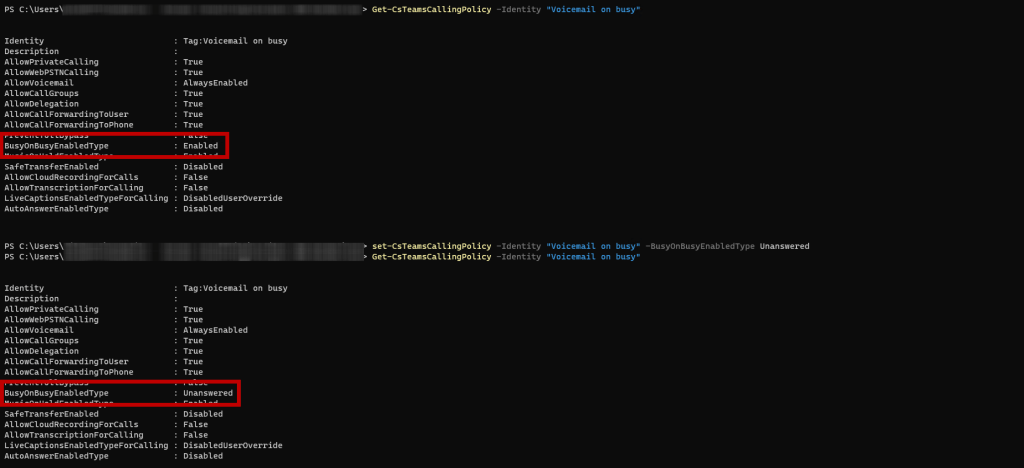
Setting the parameter to “unanswered” is currently only available via PowerShell using the Set-CSTeamsCallingPolicy cmdlet:

Set-CsTeamsCallingPolicy -Identity "Voicemail on busy" -BusyOnBusyEnabledType Unanswered

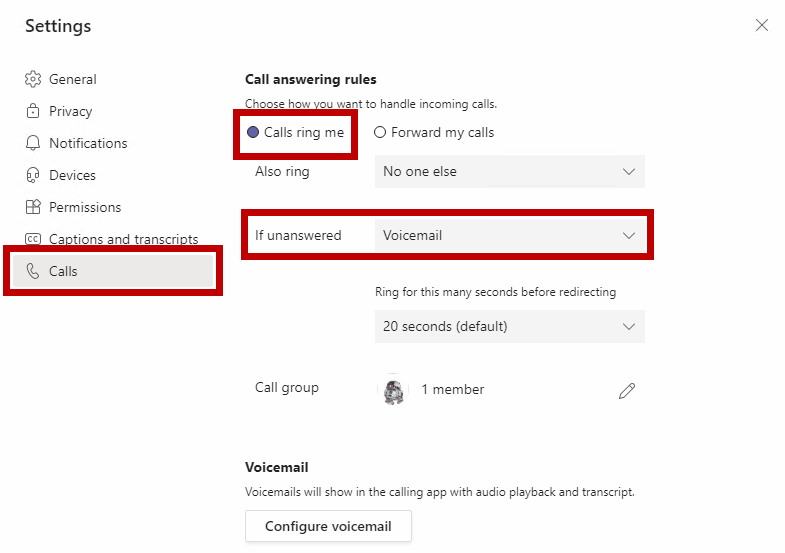
The important part with this setting, is that it is following a user’s “Call answering rules” -> “If unanswered” setting. So for this to work, a user need to have the “If unanswered” set to “Voicemail”.

Microsoft references

UserVoice announcement: Voicemail on busy – Microsoft Teams UserVoice
Cmdlet reference: Set-CsTeamsCallingPolicy Parameter – BusyOnBustEnabledType

Customising the Teams app store

Note: Settings can take up to 24 hours to apply.
Summary
This setting will allow an organisation to customise the look and feel of the Teams app store (aka the Teams app catalogue) to a limited degree.

Settings
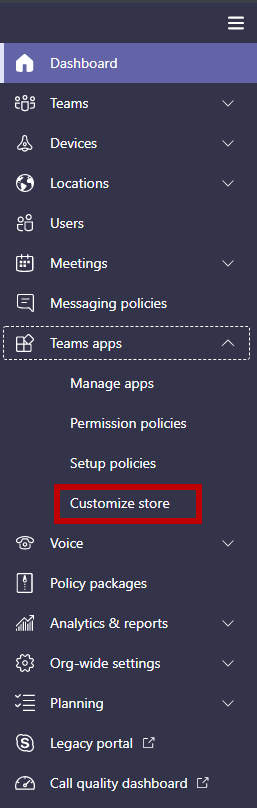
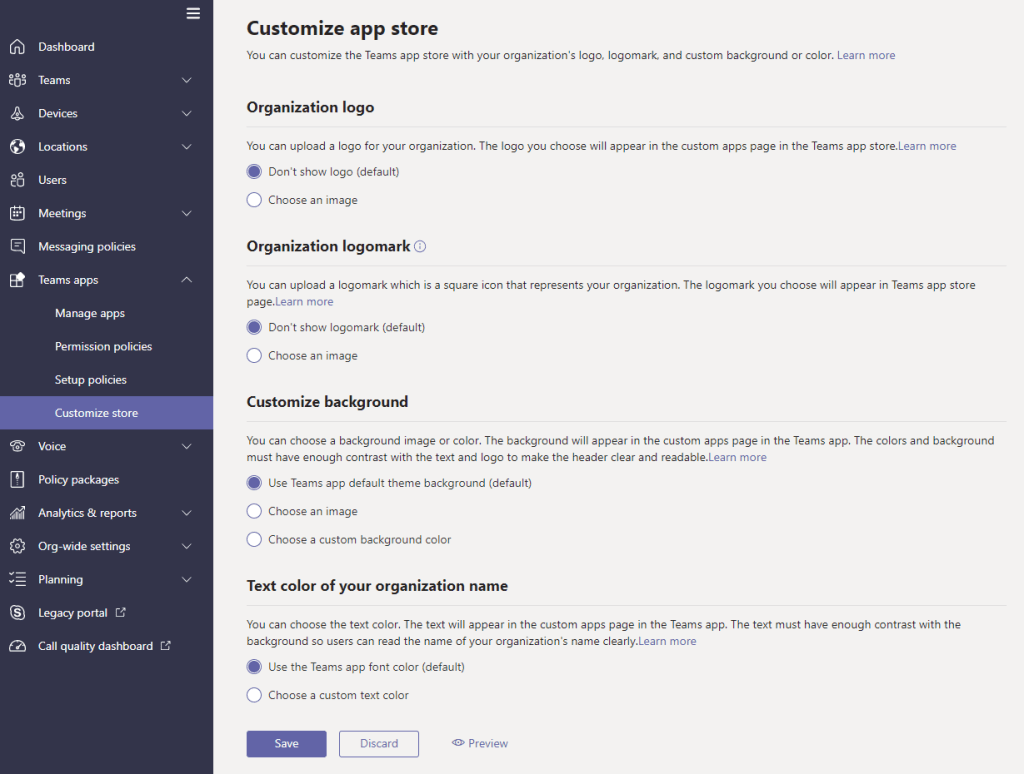
The customize store policy is located in the Teams admin center -> Teams apps -> Customize store. This is a global setting and applies to all users.

The following customisation settings are currently available:

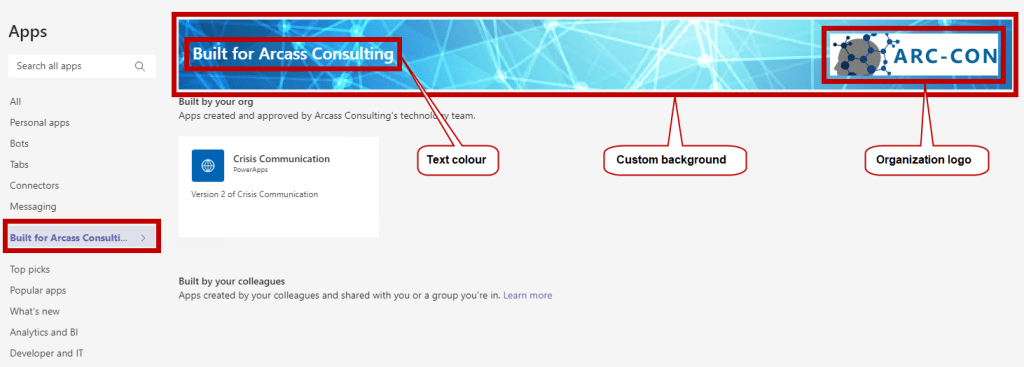
Customise organisation logoThe logo should be 240×60.
It should be no larger than 5 MB.
Supported file formats:
.svg
.png
.jpg
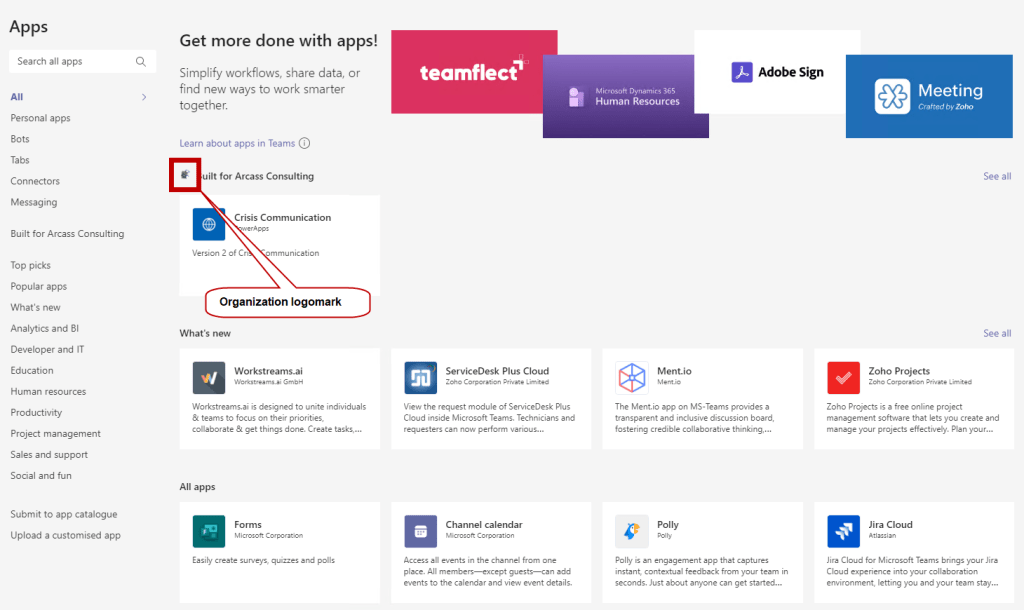
Customise small logoThe logomark should be 32×32 pixels.
It should be no larger than 5 MB.
The supported formats are:
.svg
.png
.jpg
Customise the background colourFor choose a picture:
The background should be 1212×100 pixels.
It should be no larger than 5 MB.
The supported formats are:
.svg
.png
.jpg
Customize the text colour of your nameSelect a colour using the MS colour picker.

What it looks like to an end user

Microsoft reference:
https://docs.microsoft.com/en-us/MicrosoftTeams/customize-your-app-store

How to save Microsoft Teams meeting recordings to OneDrive for Business and SharePoint Online

Note: This setting only applies to Teams meetings. Teams Live Event recording are still stored in Streams.
Note: The policy change took about 4 hours to take effect in my tenant.

Description
Ability to save Microsoft Teams meeting recordings to OneDrive for Business(ODfB) and SharePoint Online(SPO) for improved sharing capabilities, basic governance, automatic retention labels, go local, bring your own keys and, more that comes from recording video files and storing them in SharePoint Online and OneDrive for Business.
Road map feature ID: 67138 (rolling out)

Default behaviour
By default new Teams meeting policies have the recording location set to Streams.
The storage location of existing meeting policies will not be changed.

How to set meeting records to be saved to One Drive for Business and SharePoint Online
This is a meeting policy setting and is not currently available in the Microsoft Teams admin center. So we’ll need to use PowerShell to change the setting.

CmdletSet-CsTeamsMeetingPolicy
ParameterRecordingStorageMode
Available optionsStream (default) | OneDriveForBusiness
Referencehttps://docs.microsoft.com/en-us/powershell/module/skype/set-csteamsmeetingpolicy?view=skype-ps

Examples

Set all meeting policies to use ODfB and SPO for recording sGet-CsTeamsMeetingPolicy | Set-CsTeamsMeetingPolicy -RecordingStorageMode OneDriveForBusiness
Set the global meeting policy to use ODfB and SPO for recording sSet-CsTeamsMeetingPolicy -Identity Global -RecordingStorageMode OneDriveForBusiness

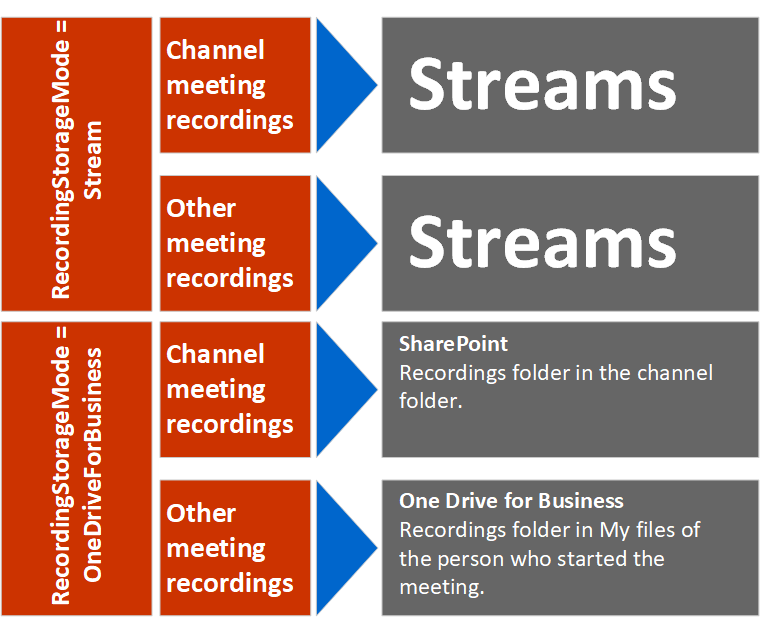
Default save locations
The save location changes depending on the RecordinStorageMode setting on the meeting organiser’s Teams meeting policy and the type of meeting the recording was created from.

Default recording permissions
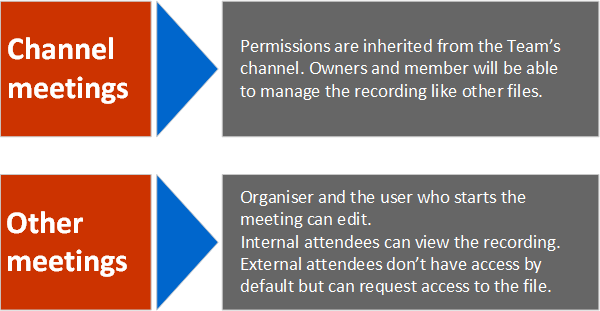
The permissions of a recording change depending on the type of meeting the recording was created from.

Recording available email
With SharePoint Online and OneDrive for Business selected as the recording storage location, you don’t receive a “recording is ready” email notification.

SfB Online: Number porting in the UK

Resources:

Step by step process

  1. Download and complete the Letter of Authorization (LoA) from the Microsoft site (see link above).
    Note: The “To” Carrier refers to your existing service provider or carrier.
  2. Submit porting form to ptneu@microsoft.com.
  3. You’ll receive a reply back in a few hours with your Port Order ID along with any questions.
  4. Porting is accepted by Microsoft and submitted to the Losing Carrier.
  5. Losing Carrier has 3 days to reject the request or issue a Firm Order Commitment (FOC) notice.
    If accepted, the porting date is confirmed.
    If rejected, engage in back and forth with Microsoft and Losing Carrier to get the information on the form correct.
  6. One day after the FOC notice is received, the numbers will be available in the SfB Online Portal. They will have a status of “Transfer pending”. They can be allocated to users but inbound calling won’t work until the porting is complete. SfBPortal-Pendingtransfer
  7. Three days before the port is scheduled is the last chance to cancel the port.
  8. On the porting day, at some point after the porting time, calls will start being directed to SfB users.
  9. Once the port is confirmed, Microsoft will convert any user numbers to Service numbers.
  10. Crack open a <beverage> and celebrate a job well done.

User experience during the porting window

During the porting window, there should be no disruption to calls.

Outbound calling from SfB will continue to work. Once the port is complete, CLI should automatically update to the new DDI number.

For inbound calling, at some point during the porting window calls will stop ringing on the old handset and start ringing on the SfB client.

Calls that are already established will continue until one party hangs up.

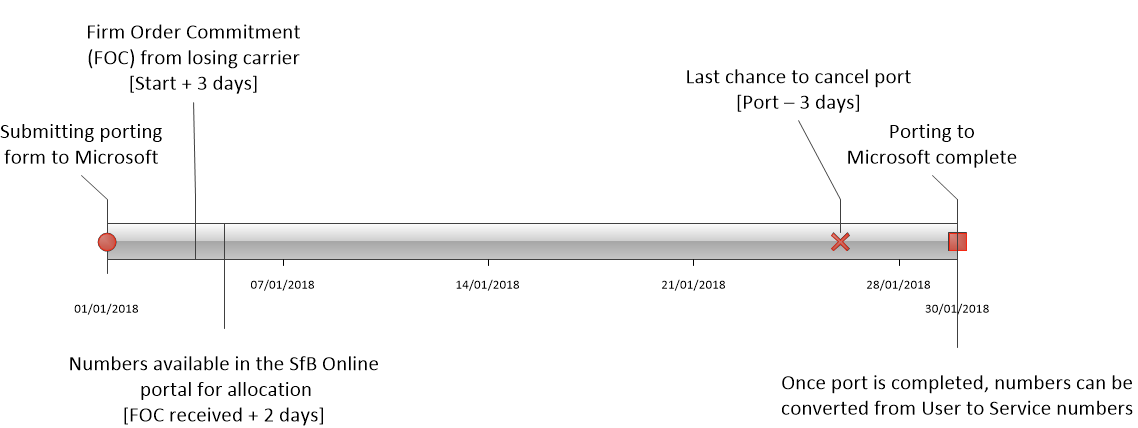
Porting timeline

Based on my experience, the timeline for porting to Microsoft is very similar to other telecoms companies. And will look like the diagram below:

PortingTimeline

The process is also governed and regulated by OFCOM in the UK, so telcos are legally required to comply with valid requests.

Gotchas and lessoned learnt

  • The form doesn’t ask for it but you will need to provide either the Organisation ID or *.onmicrosoft.com domain.
  • The initial response from the porting team was good, we had the Port Order ID within 30 minutes of emailing in.
  • All numbers are ported in as user number and you can then convert select numbers to service numbers.
  • Pick a migration date at least 20 working days in the future.
  • 3 days notice to cancel a request.
  • Numbers are available in the SfB Online portal once the losing carrier has accepted the request. They have a status of “Transfer Approved”. You can assign them to users at this point, however, inbound calling won’t work till the agreed port day.
  • Converting from a User number to a Service number takes 20 minutes, can only be done once the port is complete and does involve the number being out of service while being converted.

Finding your onmicrosoft.com domain

Admin Console

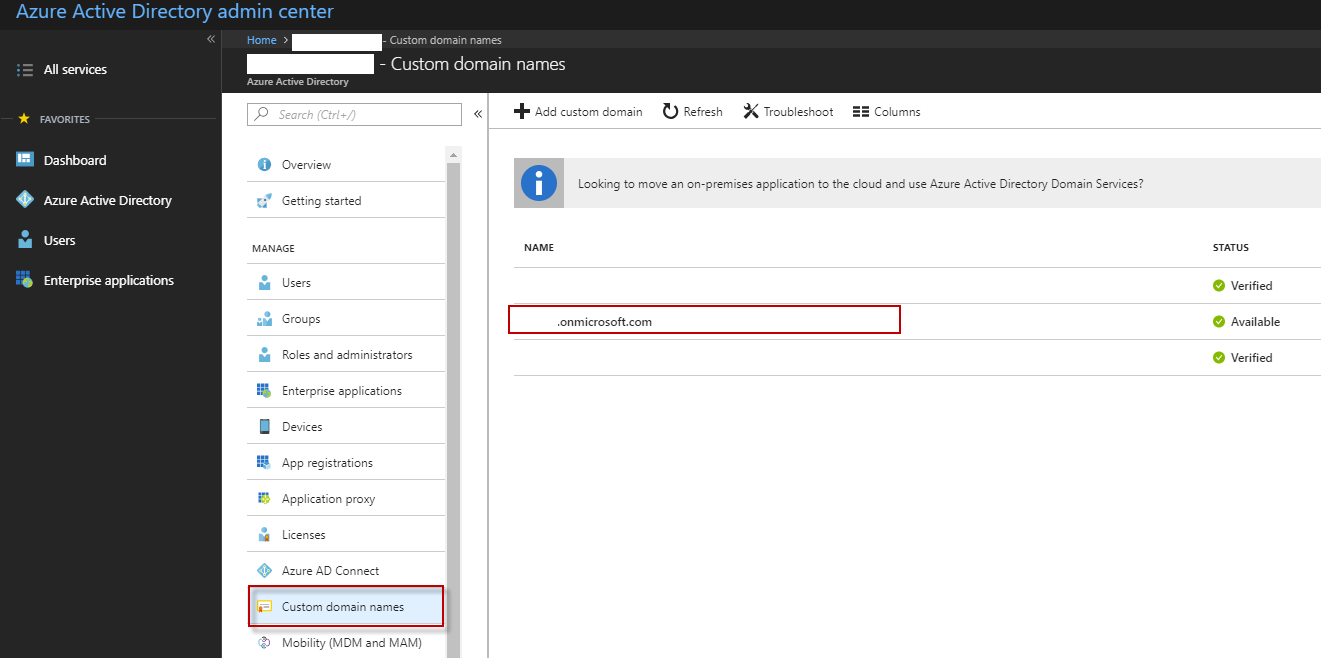
The organization ID can be found from the Azure Active Directory Admin Center -> Azure Active Directory -> Custom domain names.

From the list search of the <>.onmicrosoft.com entry.

FindDomain

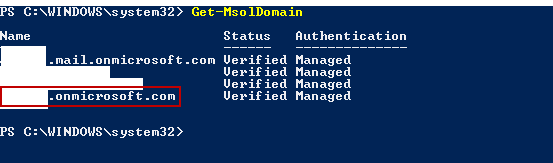
PowerShell

Once you are connected to Azure ID run Get-MsolDomain and look for the <domain>.onmicrosoft.com entry

FindDomainPowerShell

Finding your Organisation ID

Third Party Website

Some kind folks have built a website that will find your Org ID for you: Link Simply enter your office 365 domain and it will display the Org ID. The site uses OpenID Connect which is an identity layer that sits on top of OAuth 2.0.

Admin console

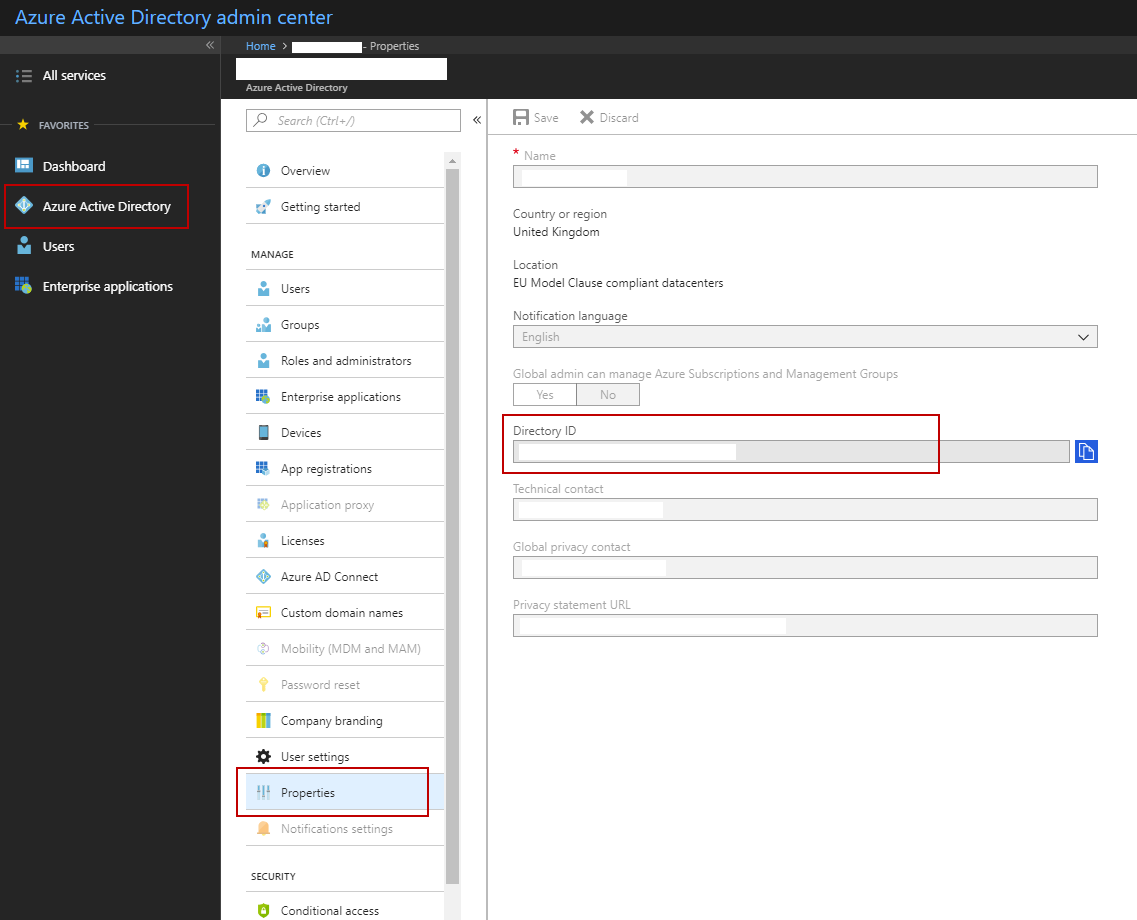
The organization ID can be found from the Azure Active Directory Admin Center -> Azure Active Directory -> Properties  -> Directory ID.

It looks like a GUID type string. EG. a3gbd34b-14bd-5304-c380-774f60aa533b

FindOrgID