Customising the Teams app store

Note: Settings can take up to 24 hours to apply.
Summary
This setting will allow an organisation to customise the look and feel of the Teams app store (aka the Teams app catalogue) to a limited degree.

Settings
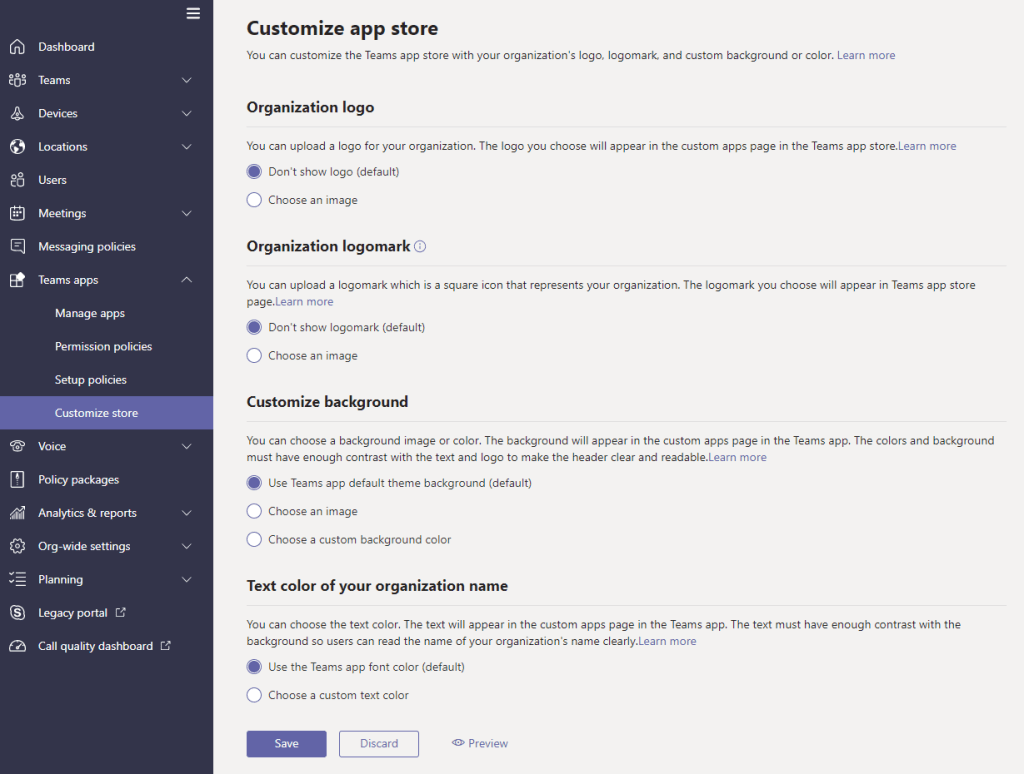
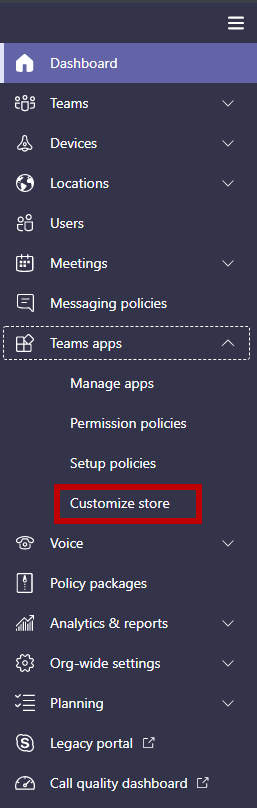
The customize store policy is located in the Teams admin center -> Teams apps -> Customize store. This is a global setting and applies to all users.
The following customisation settings are currently available:

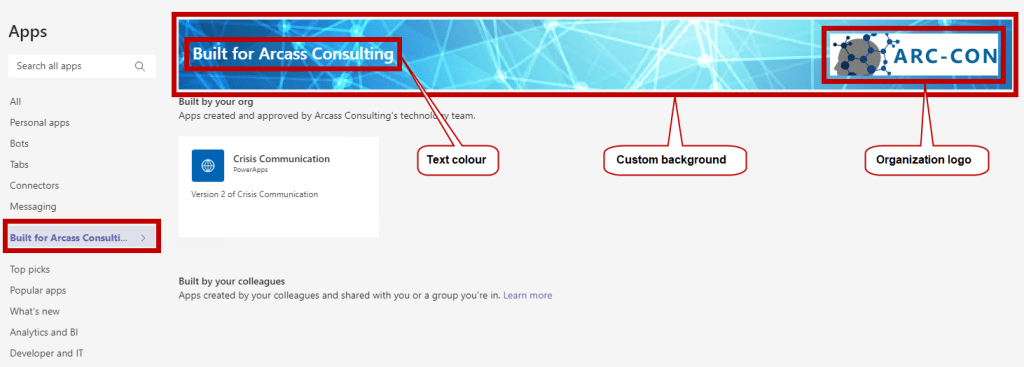
Customise organisation logoThe logo should be 240×60.
It should be no larger than 5 MB.
Supported file formats:
.svg
.png
.jpg
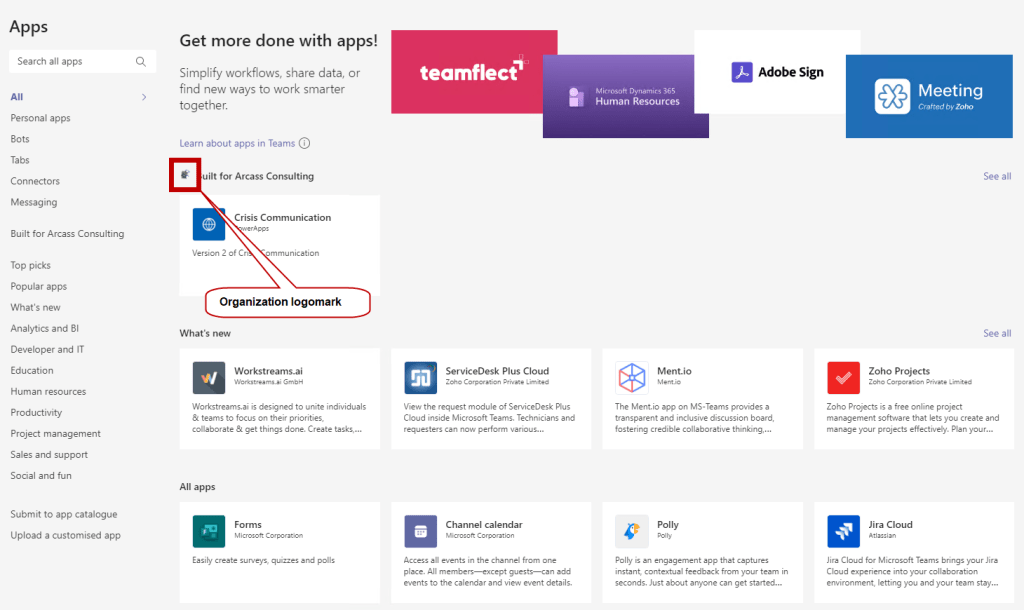
Customise small logoThe logomark should be 32×32 pixels.
It should be no larger than 5 MB.
The supported formats are:
.svg
.png
.jpg
Customise the background colourFor choose a picture:
The background should be 1212×100 pixels.
It should be no larger than 5 MB.
The supported formats are:
.svg
.png
.jpg
Customize the text colour of your nameSelect a colour using the MS colour picker.

What it looks like to an end user

Microsoft reference:
https://docs.microsoft.com/en-us/MicrosoftTeams/customize-your-app-store
How to save Microsoft Teams meeting recordings to OneDrive for Business and SharePoint Online

Note: This setting only applies to Teams meetings. Teams Live Event recording are still stored in Streams.
Note: The policy change took about 4 hours to take effect in my tenant.

Description
Ability to save Microsoft Teams meeting recordings to OneDrive for Business(ODfB) and SharePoint Online(SPO) for improved sharing capabilities, basic governance, automatic retention labels, go local, bring your own keys and, more that comes from recording video files and storing them in SharePoint Online and OneDrive for Business.
Road map feature ID: 67138 (rolling out)

Default behaviour
By default new Teams meeting policies have the recording location set to Streams.
The storage location of existing meeting policies will not be changed.

How to set meeting records to be saved to One Drive for Business and SharePoint Online
This is a meeting policy setting and is not currently available in the Microsoft Teams admin center. So we’ll need to use PowerShell to change the setting.

CmdletSet-CsTeamsMeetingPolicy
ParameterRecordingStorageMode
Available optionsStream (default) | OneDriveForBusiness
Referencehttps://docs.microsoft.com/en-us/powershell/module/skype/set-csteamsmeetingpolicy?view=skype-ps

Examples

Set all meeting policies to use ODfB and SPO for recording sGet-CsTeamsMeetingPolicy | Set-CsTeamsMeetingPolicy -RecordingStorageMode OneDriveForBusiness
Set the global meeting policy to use ODfB and SPO for recording sSet-CsTeamsMeetingPolicy -Identity Global -RecordingStorageMode OneDriveForBusiness

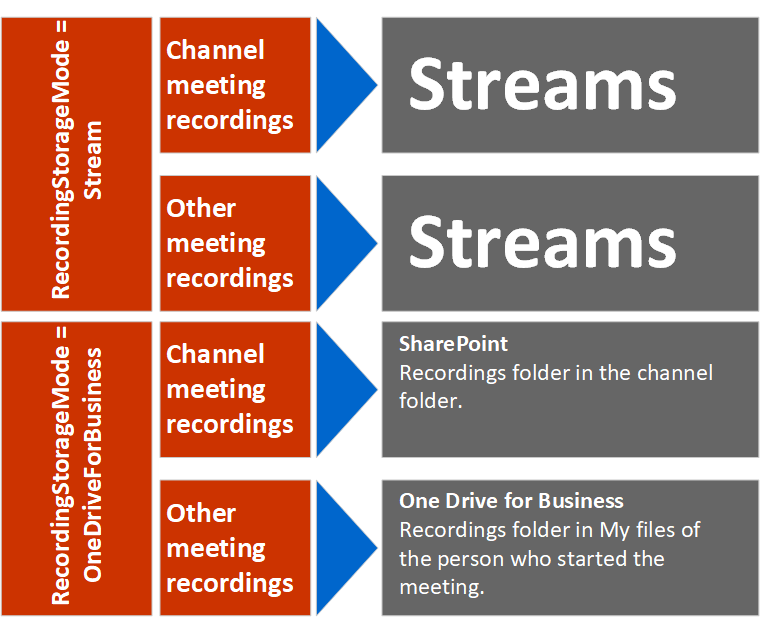
Default save locations
The save location changes depending on the RecordinStorageMode setting on the meeting organiser’s Teams meeting policy and the type of meeting the recording was created from.

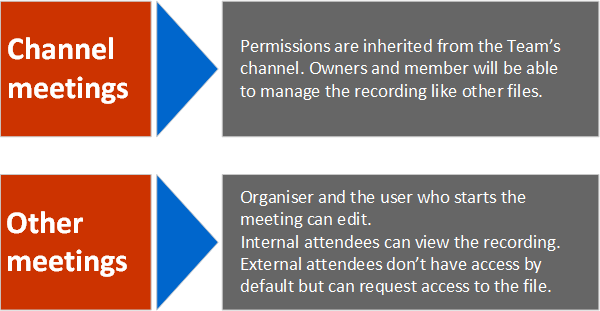
Default recording permissions
The permissions of a recording change depending on the type of meeting the recording was created from.

Recording available email
With SharePoint Online and OneDrive for Business selected as the recording storage location, you don’t receive a “recording is ready” email notification.